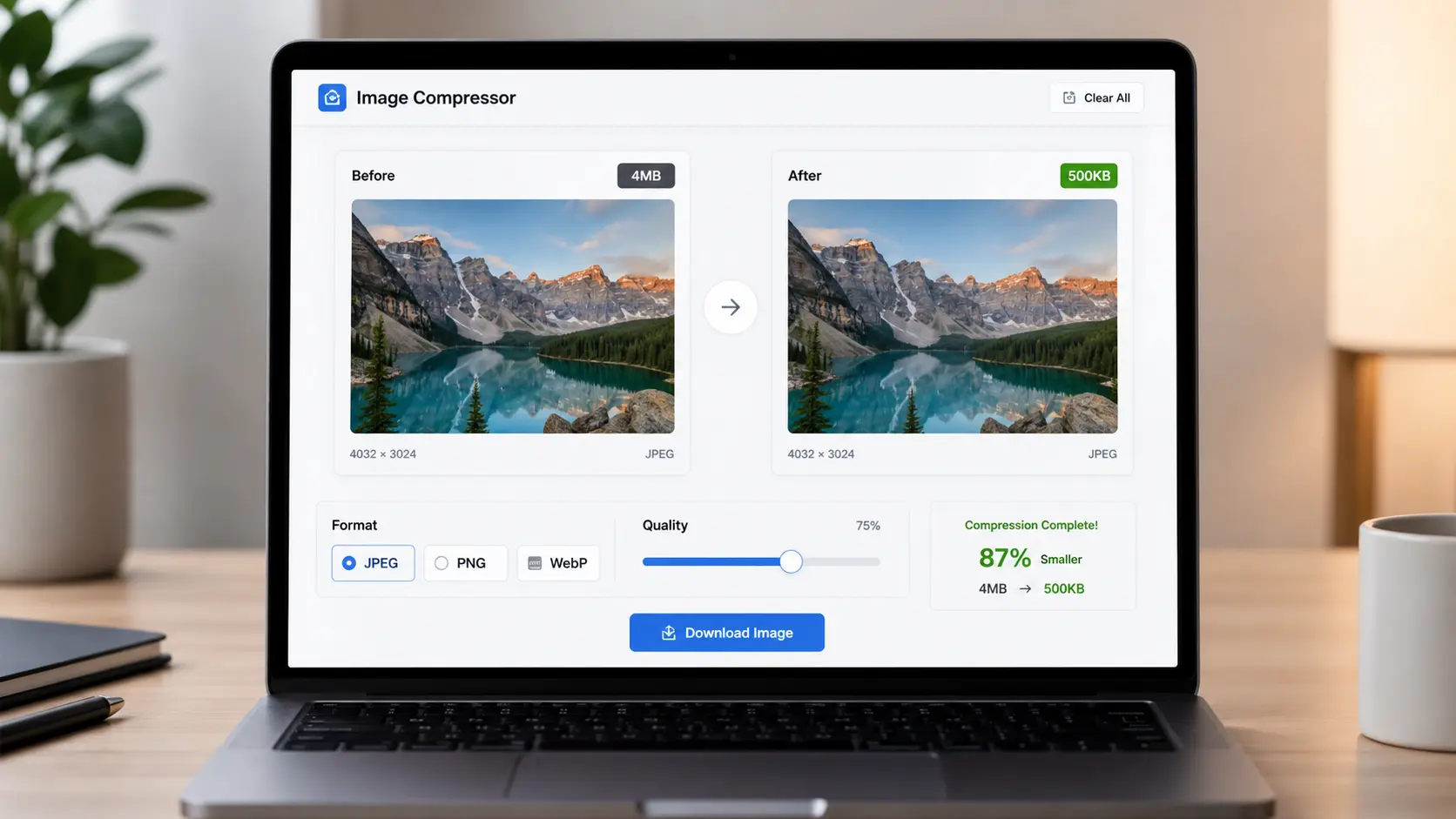
Why Image Size Actually Matters
Most people don't think about image file size until something breaks. Your website takes 8 seconds to load. Instagram rejects your upload. A client complains their email is full because of the photos you sent. A 4MB product photo slows your entire page and tanks your Google ranking.
The fix is simple: compress your images before you use them. A photo that looks identical to the human eye can be 70–85% smaller when optimized correctly. That 4MB file becomes 500KB — and the difference is invisible to anyone looking at it on a screen.
The Problem with Most Free Image Compressors
There are plenty of image compression tools online — but most of them come with strings attached. TinyPNG limits you to 20 images per month on the free plan. Squoosh is excellent but requires some technical knowledge. Compressor.io uploads your image to their servers, which raises privacy questions. Most mobile apps add their own watermark to the output.
What you actually want is something that works instantly, keeps your image private, and doesn't ask you to create an account just to download a smaller JPEG.
Try the Image Optimizer — Free
No signup. No upload to any server. Compress JPEG, PNG and WebP in seconds.
Open Image Optimizer →How to Compress an Image in 3 Steps on Wilnexo
- Go to the Wilnexo Image Optimizer and drop your image onto the upload zone — or click to browse. Works with JPEG, PNG, WebP, GIF, and BMP.
- Set your compression quality. The default is 75%, which is the sweet spot for most images — the result looks identical on screen but is significantly smaller. If you need even smaller files (for web thumbnails or email), drop it to 60%. If you need higher fidelity (photography, print proofs), go to 85–90%. You can also choose your output format: JPEG for maximum compatibility, WebP for the smallest possible file, PNG for images that need transparency.
- Click Compress Image. The before/after comparison appears instantly — you can see the exact file size reduction. If the result looks good, click Download.
The entire process takes under 30 seconds for most images. There is no waiting, no processing queue, no email confirmation. It just works.
JPEG vs WebP vs PNG — Which Format Should You Use?
JPEG
The default choice for photos. Works everywhere — social media, email, websites, apps. At 75–80% quality, JPEG produces excellent results with file sizes typically 60–70% smaller than the original. The main limitation: no transparency support.
WebP
Google's modern format. Produces 25–35% smaller files than JPEG at the same visual quality. Supported by all modern browsers (Chrome, Firefox, Safari, Edge). If your images are going on a website and you don't need to support very old browsers, WebP is almost always the better choice.
PNG
Lossless compression — the quality is mathematically identical to the original. Best for logos, icons, screenshots, or anything with text or transparency. PNG files are larger than JPEG/WebP for photos, but for graphics with hard edges and flat colors, PNG is the right call.
What Quality Setting Should You Use?
This is the question most people get wrong. Higher quality = better image, right? Not necessarily — at least not in any way you can see on screen.
Human eyes have a threshold. Above about 80% JPEG quality, most people cannot reliably tell the difference between the original and the compressed version — especially on a monitor or phone screen. The sweet spots:
- 60–70% — Web thumbnails, social media previews, email attachments. Still looks great, maximum size reduction.
- 75–80% — General use. The ideal balance. Most images drop 65–75% in size with no perceptible quality loss.
- 85–90% — High-fidelity web images, product photography, portfolio shots where quality matters most.
- 95–100% — Near-lossless. Use only for archiving or professional print — file sizes are much larger with minimal visual benefit over 85%.
Is My Image Private?
Yes — completely. The Wilnexo Image Optimizer does not send your image to any server. It runs entirely in your browser using the HTML5 Canvas API. When you upload an image, it stays on your device. When you download the compressed version, it was created locally on your machine. We never see it, store it, or process it remotely.
This is one of the things we've been intentional about at Wilnexo. Every tool on this site is built client-side for a reason — your files are yours.